
Troubleshooting Guide
Menu
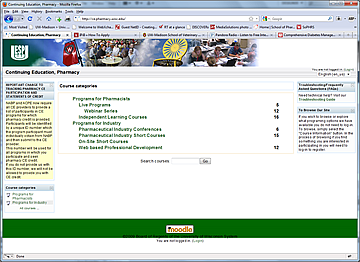 I can't log-in / I never received my account confirmation email
I can't log-in / I never received my account confirmation email
When a new user account is created, our system sends an email to the address you provide. This helps to prevent the creation of bogus accounts and safeguards against hacking. The confirmation email that is sent to you may be designated as spam and transferred to your junk mailbox, or your system may have a firewall that prevents the email message from reaching your in-box.
If you have not received an email to confirm your account or you just seem to have problems logging in, even after trying other troubleshooting options, you will need to either email us or call us to have your account activated or reset: 608-890-0312.
Forgot my password and/or username
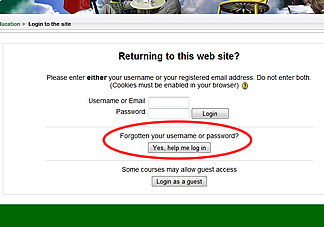
Forgotten usernames and passwords can be retrieved by visiting the "Forgotten your username or password" area on the Login page.
How do I change my password?
- Begin by logging in.
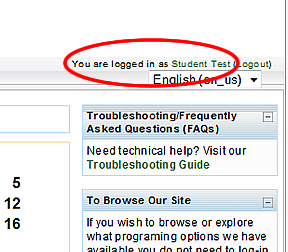
- In the upper right-hand corner of the screen (right above the"Troubleshooting / FAQs area)", click on your user name. (In this example, the user name is Test Student)
- Your profile page will load, including all of the courses you have taken or have registered to take. Click the button under the box that says "Change Password".
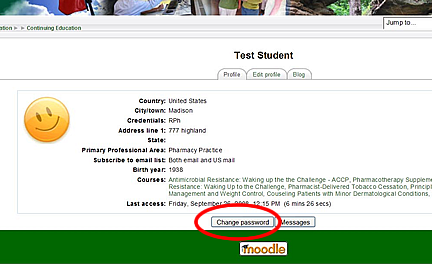
- You will be required to enter your existing password and then type you new password twice. Click "Save changes"
I need a receipt
To print a copy of a receipt:
- Log-in with your username and password.
- Find the course for which you need the receipt and enter the course.
- In the column along the right of your screen you should see a box labeled "Enrollment"
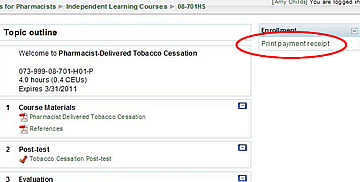
- Click "print payment receipt"
- When the screen loads, use the print option in your browser.
Did my registration go through? / Am I registered?
If your email address is correct in our system you should receive an email confirmation from ceadmin@pharmacy.wisc.edu. If you have not received this email, please check to be sure that your email account is not blocking this email address from sending you messages.
If you did not receive a confirmation email message you can log-on to our website and verify that you are registered.
- Log-in with user name and password (if you have forgotten your user name or password, click here)
- You now have several options:
- Option 1: If you're doing a home study program and want to access the materials, then proceed to the course listing. If your registration is complete and payment has been received (if applicable), then the course page will open with the materials you need. If not, then the registration screen will open.
- Option 2: If the program you need is a live program, then you can either follow the procedure described in Option 1, or you can click on your user name in the upper right hand corner of the screen.
- Option 3: The quickest way to determine if your registration is complete, look in the column on the left side of your screen. There is a box labeled "My courses", the course in question should be listed there if your registration has been processed.
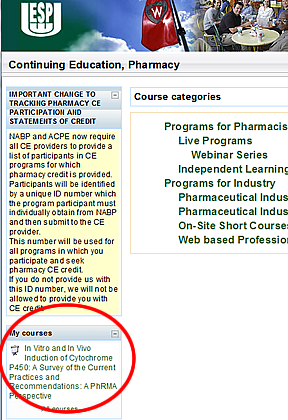
If you are not able to confirm your registration through one of the options listed above, then your registration is not complete. To determine why you will need to contact our office. You may contact us by email or by calling 608-262-3132, 608-262-3130 between the hours of 8 am - 5 pm CST.
Did you receive my payment?
When we receive payments, a confirmation email message gets sent to you. If your email address is correct in our system you should receive an email confirmation from "ceadmin@pharmacy.wisc.edu". If you have not received this email, please be sure your email account is not blocking "ceadmin@pharmacy.wisc.edu" from sending you messages.
If you did not receive a confirmation email message you can log-on to our website and verify that you are registered and that your payment has been received.
You may also print a receipt.
How do I print / save my certificate?
Your course certificate (statement of credit) must be saved/printed by the course expiration date.
To access a course certificate:
- Login with your username and password.
- Select the course for which you need a certificate from the "My courses" area located at the left of your screen.
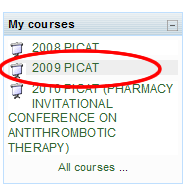
- The resources for the course you have selected will appear. A link for "statement of credit" will be included in box 1. Click on this link.
Note: In order to access your certificate, you will need to have completed the course questionnaire and evaluation.
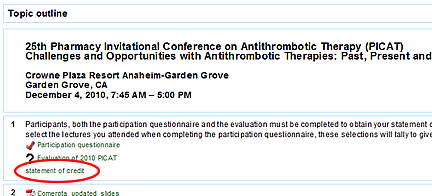
- You will be taken to a window that displays the date and time that you received the certificate.
Click on the button labeled "Review your certificate."
• If you are using Firefox as your browser, your certificate will open in a new tab. You may either print a copy of it, or you can save it
by hitting Ctrl + S.
• If you are using Internet Explorer as your browser, a dialogue box will appear and ask if you want to save or print the file.
